General Settings
This section explains the Homepage of your clearxx Agent & Build Workspace.
There are settings that you can adapt to your needs and some settings that need to remain unchanged or untouched in order to ensure proper functioning.
clearxx Agent & Build Workspace Homepage
When you sign into the clearxx Agent & Build Workspace you will see the following page:
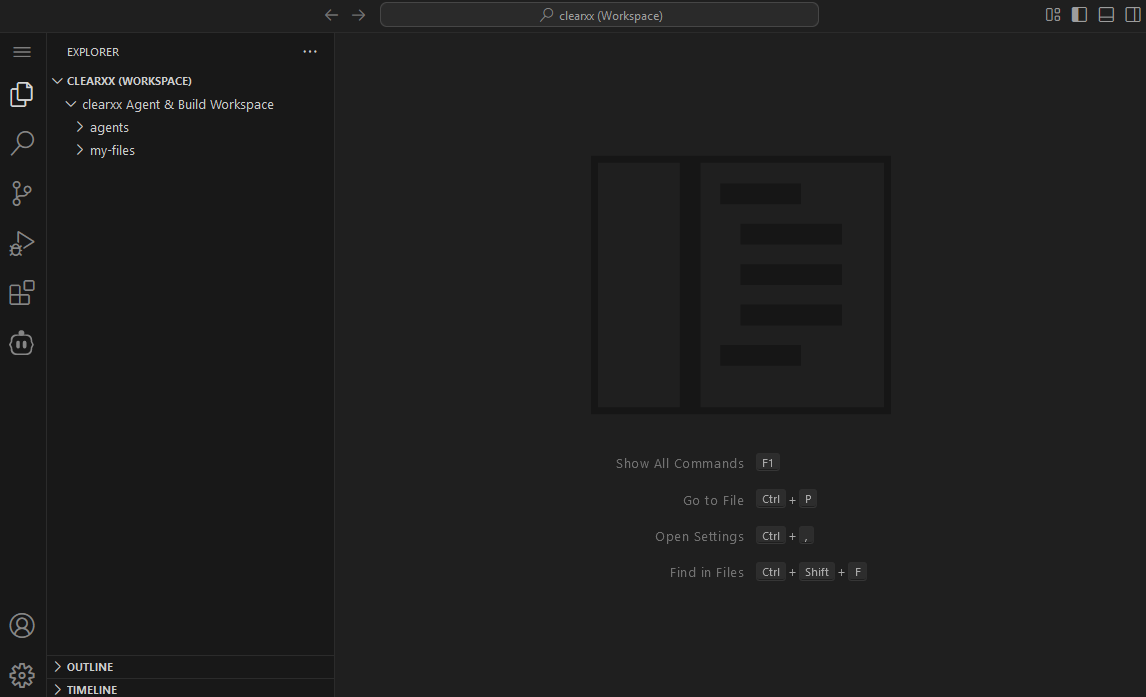
On this Homepage, there are three sections:
- On the very left is the Activity bar, the narrow bar with several icons. Clicking on an icon will take you the workspace of that topic
- The Workspace area or panel. When you first sign on, by default you will see the workspace Explorer with folders and files
- The large where you will see content of files or live work that Cline performs
There a several more things on the Homepage:
- At the bottom left, there is an icon of circle with a head inside it. Ignore that, do not use it. If you do, proper functioning of the tools cannot be guaranteed.
- At the bottom left, there is gear icon. These are the Settings and will be explained in another section of the user documentation.
- At the bottom of the Workspace area are Outline and Timeline. Ignore those, do not use them. If you do, proper functioning of the tools cannot be guaranteed.
- At the top right are options to customize the Layout of the clearxx Agent & Build Workspace. These will be explained in another section of the user documentation.
Your work with this tool
Please keep in mind that this tool is normally a tool for software developers.
However, you now have the know-how to use this tool without needing the skills of a developer.
If you have participated in the clearxx Workshop, you have learned how to work with Agent-files and Cline.
Since this tool is normally for developers, there are a lot of functionalities that you do must NOT activate or use, and settings you must not change. If you do so, proper functioning of the tools cannot be guaranteed.
The user documentation explains which settings and functionalities you CAN use. Please stick to only those and your work with this tool will become very easy.