General Settings
This section explains the Homepage of your clearxx Assistant.
There are settings that you can adapt to your needs and some settings that need to remain unchanged in order to ensure proper functioning.
clearxx Assistant Homepage
When you sign into the clearxx Assistant you will see the following page:
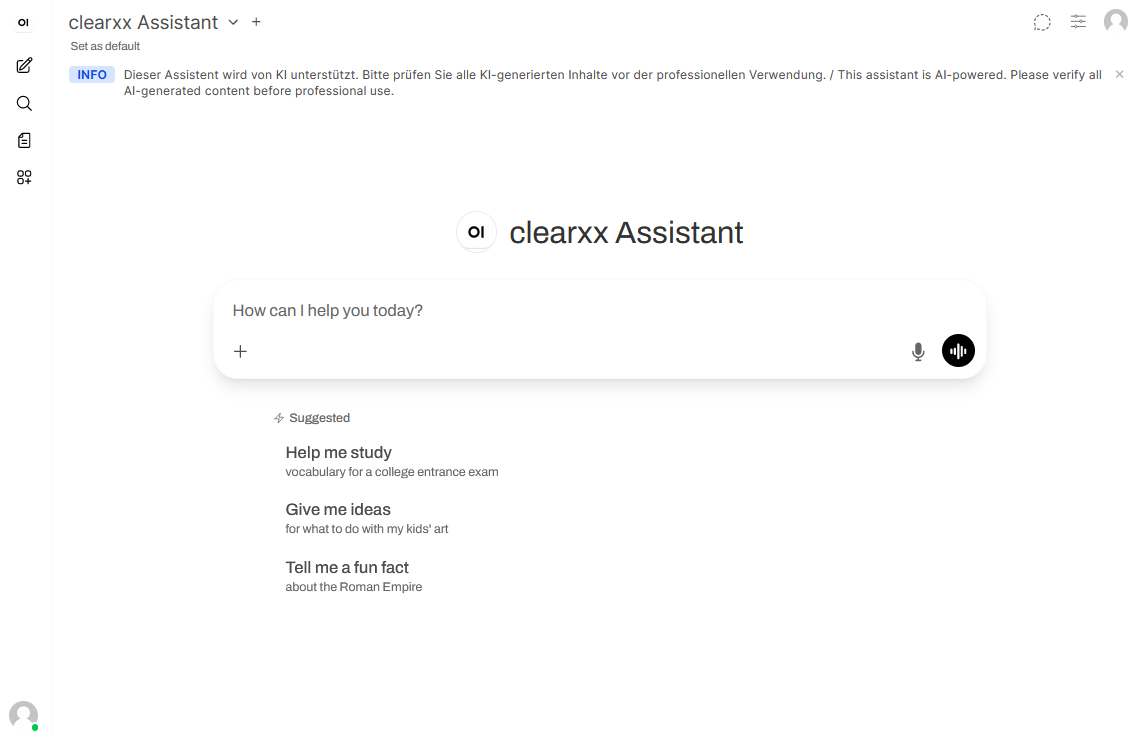
Important things to note on the Homepage
- At the top you see a legal Info to let you know you are working with an AI-powered tool.
- Right in the middle under clearxx Assistant is the chat box where you can enter your prompts. You can start chatting immediately, in any language.
- At the top left you see icons in a side bar that expand when you open the sidebar.
- At the top right you see some icons for user settings.
- At the bottom left is an icon of a head which brings you to user settings.
Open the sidebar menu
To open the sidebar menu, click on the OI icon at the very top left.
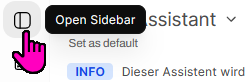
You will then see all the sidebar menu items.
User settings
At the top right, there are three icons.

- The icon of a head, on the far right, brings you to user Settings.
- The icon in the middle is for Controls. Do not change any of those settings. If you do so, the proper functioning of the tool is no longer guaranteed and may lead to suspension of the account.
- The icon on the left is for Temmporary Chat. You can use this if you don't want any chat history to be recorded at all.
Sidebar Menu
When you open the sidebar menu you will see this:
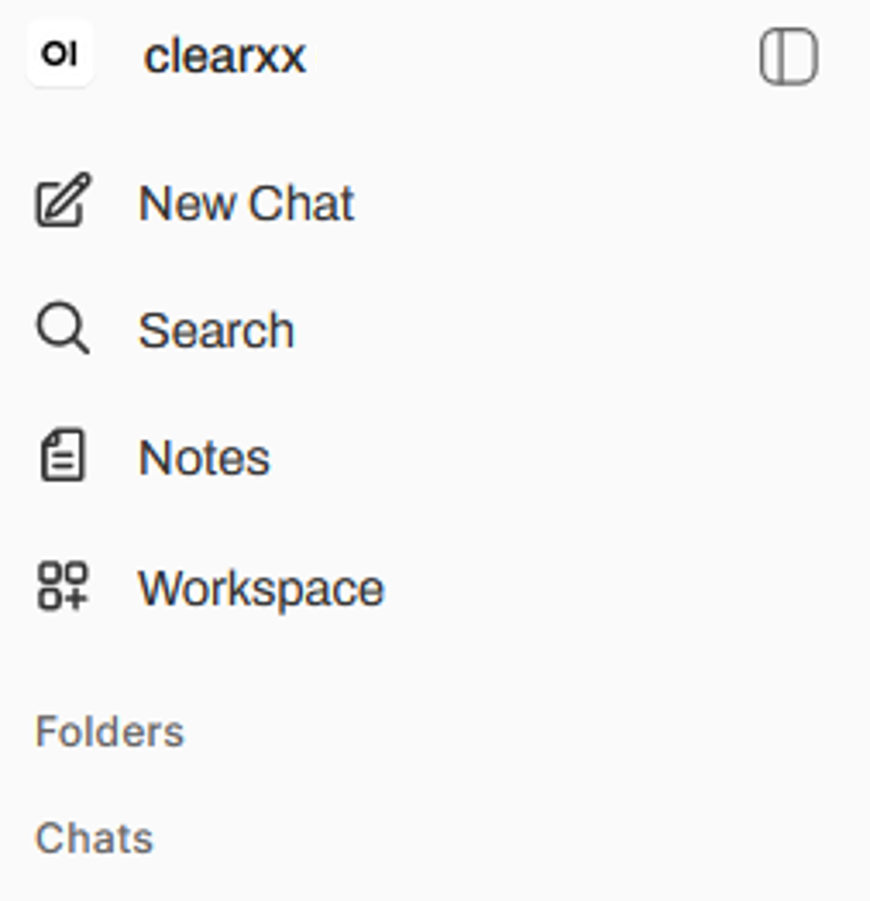
- New Chat
- Search
- Notes
- Workspace
- Folders
- Chats (this is the chat history)
User Settings
When you click on user settings (the icon with the head, either at the top right or bottom left of the Homepage) you will see:
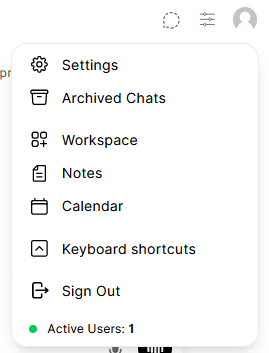
At the top are the Settings. The rest are additional settings, Workspace is also again in the left sidebar menu.
Lanuage Settings
When you click on Settings you will see:
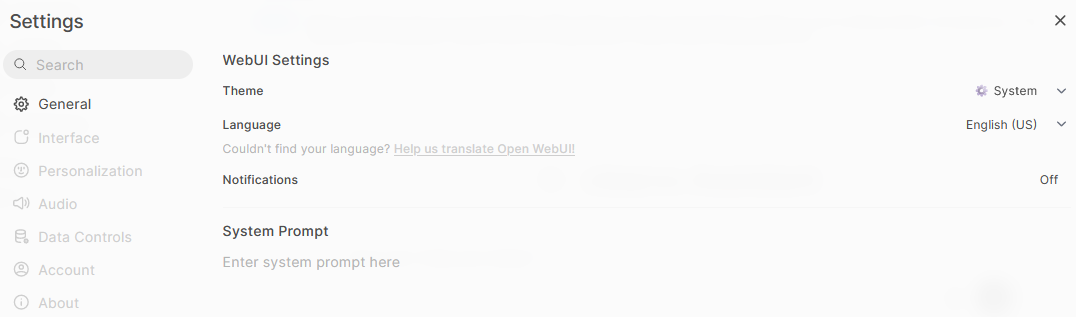
In the menu item General you can change the language of the application. This has nothing to do with the chat language. Refresh the browser for a new language to load.
Do not make any changes under Interface, Audio, Data Controls. If you do so, the proper functioning of the tool is no longer guaranteed and may lead to suspension of the account.
In Account you can change your password.
Background Theme
In the Settings, when you click on System you will see:
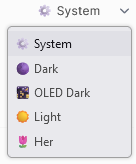
Here you can change the background color of the application.
Personalization
In the Settings, in the left sidebar menu, when you click on Personalization you will see:
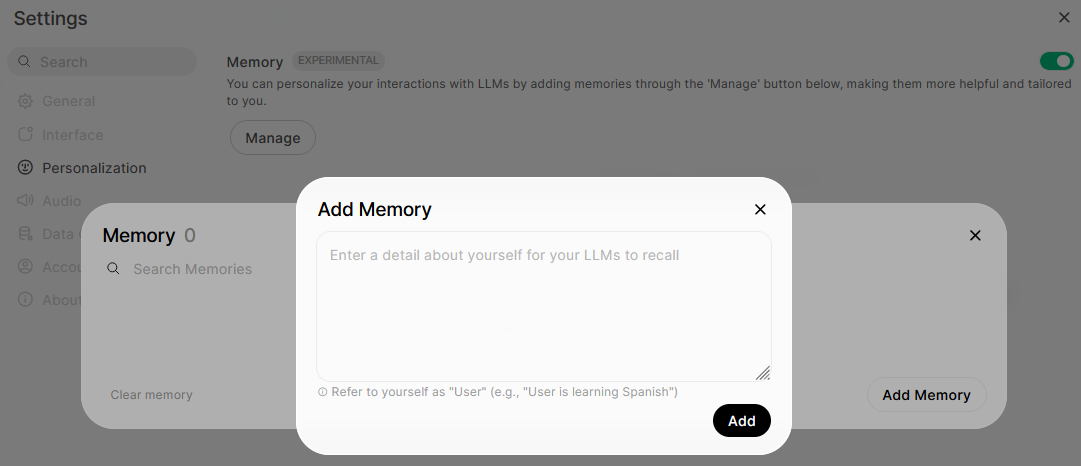
Here you can add a Memory to the clearxx Assistant. You can enter details about yourself that the Chat Assistant will always remember. This is like an Agent-type file, like Soul or User, something you will use in clearxx Agent & Build Workspace.
Starting a Chat
In order to start a Chat enter your prompt where it says How can I help you today. Hit enter on your keyboard
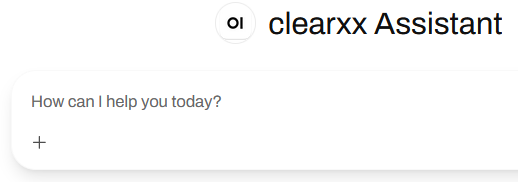
The result will then look like this:
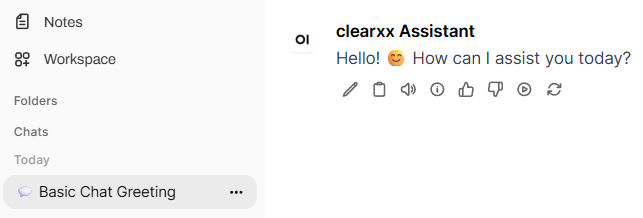
Notice that in the left sidebar menu under Chats and Today there is now a new chat entry. This is your chat history. Make sure you delete old chats as soon as you do not need them anymore.