Settings - Activtiy Bar
This tool has a lot of settings, most of which you do not need.
Please read this section carefully and make the initial settings as described in order to optimize yur work with the clearxx Agent & Build Workspace.
Activity Bar
The first thing you need to do is to adapt what you see in the Activity Bar on the far left side of the Homepage.

Move the cursor into the Activity Bar and right-click your mouse.
This opens up the panel where you can select what you see in the Activity Bar.
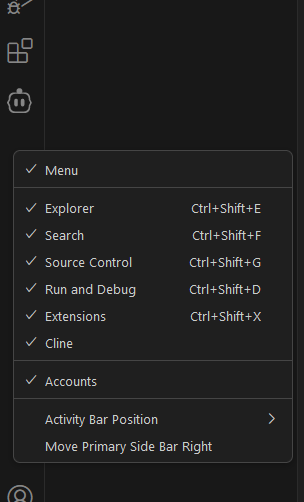
Deselect by clicking on the line (you have to open up this panel with a right-click several times, the check-mark before the line is gone when having deselected it):
- Source Control
- Run and Debug
- Extensions
- Accounts
The updated Activity Bar will then look like this.

Do NOT use any of the functionalities you just removed from the Activity Bar.
If you do so, it may lead to a disruption of the tool, proper functioning cannot be guaranteed and your account may be suspended temporarily.
Activity Bar Menu
At the very top of the Activity Bar is the menu, it is the icon with the three horizontal bars.
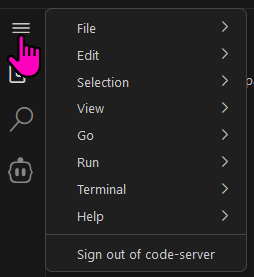
A lot the menu items are for doing software development, so you do not need them.
The only things you may use from this menu are:
- File
- Edit
- Sign out of code-server (you can also just close the window or browser and that will also sign you out of the clearxx Agent & Build Workspace.