Notes
The Notes section allows you to store information that you can use with clearxx Assistant.
You search, you discover, you synthesize. Notes is where that becomes lasting knowledge. It's a dedicated workspace for content that lives outside of any single conversation: drafts, cheat sheets, research findings, project briefs. Things you build up over time and than you can inject into future chats as context.
Unlike standard chats, which are linear and ephemeral, Notes are persistent documents you can return to, edit, and share. Unlike documents Workspace, which use vector search to find relevant chunks, Notes inject their full content directly into context, giving you precise control over what the clearxx Assistant sees.
Attaching a note injects the full text. A very large note, however, may cause the model to lose earlier conversation context.
Important The content of one Note is limited to 3,000 words or roughly 18,000 characters. This is about 7 or pages of text.
Notes Panel
Click on Notes in the left side bar menu.
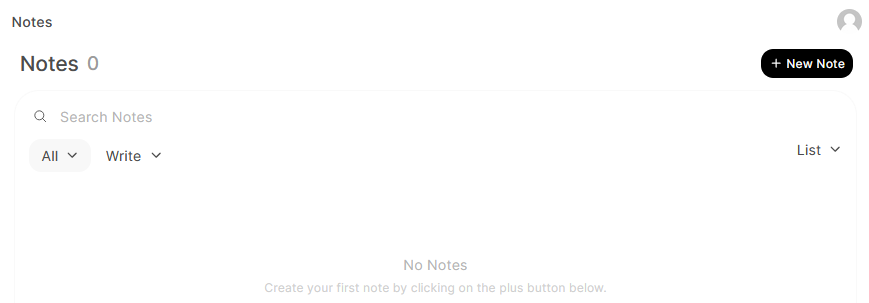
Click on New Note. You can then enter a note.
To add it, click on Notes in the left sidebar menu.
Manage Notes
Select a note. At the top right, click on the three dots. A menu will open and from there you can choose to delete the note permanently.
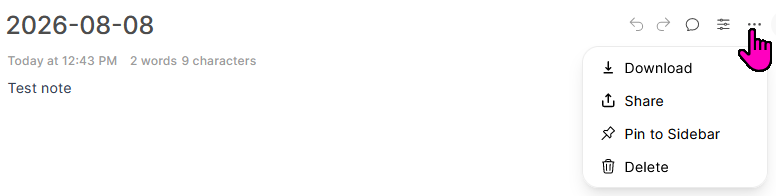
You can also choose Pin to Sidebar which add Notes the left side bar menu.
Using Notes in a Chat
When you start a chat, use the # symbol or the + sign to add data from Notes.