Settings - Main
This section describes the settings you can make to optimize your work with the clearxx Agent & Build Workspace.
Overall Settings
At the bottom left of the Homepage is the Settings gear icon.

Click on it. This opens the Menu panel.
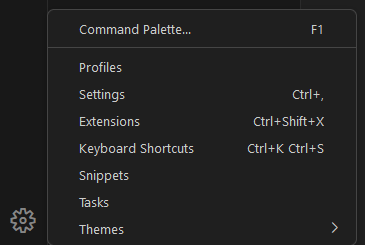
Here, you can only work with the seetings for Themes.
Do NOT access or change any of the the other settings. Those are for doing software development work.
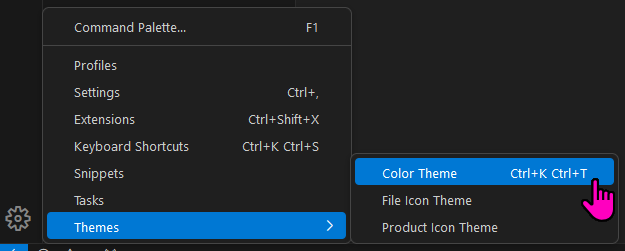
Click on Color Theme
This opens the menu where you can select from a variety of light and dark background themes.
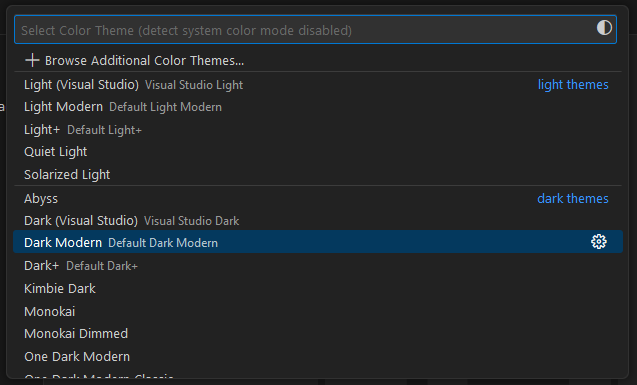
Try them out and feel free to choose whatever you like best.
Showing normal Folder Hierarchy
By default, when you add folders, the Folder Hierarchy is shown in one row.
To have the folder structure displayed normally with one folder nested under the other, you need to change a setting.
Go to the gear icon at the very bottom left, labeled Settings and click on it.
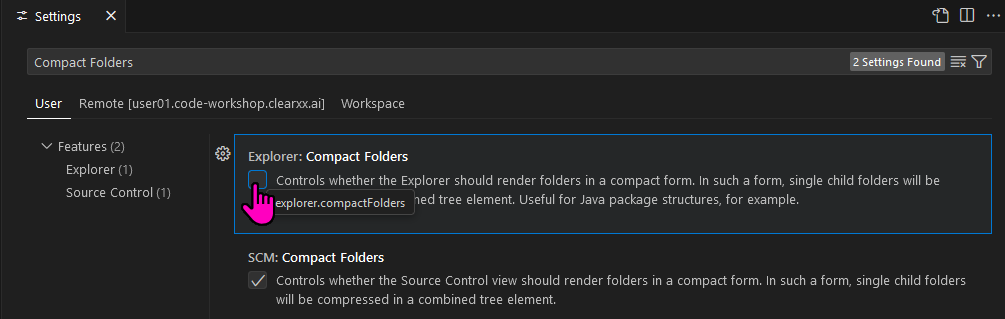
In the search bar where it says Search settings, type: Compact Folders. You'll see: Explorer: Compact Folders. Uncheck it. Close the Settings.
The folder structures in the EXPLORER will now be displayed normally as a hierarchy.