New Chat
This section explains how you can start a new chat on the Homepage of the clearxx Assistant.
clearxx Assistant new Chat
In order to start a Chat enter your prompt where it says How can I help you today. Hit enter on your keyboard
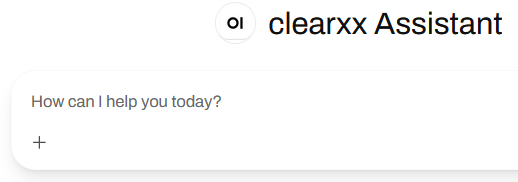
The result will then look like this:
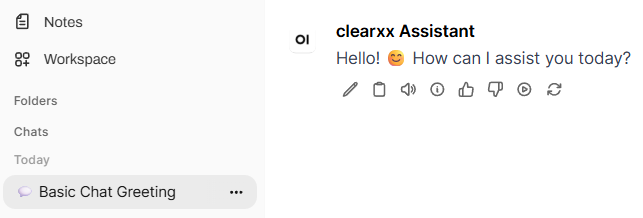
Notice that in the left sidebar menu under Chats and Today there is now a new chat entry. This is your chat history. Make sure you delete old chats as soon as you do not need them anymore.
Adding Data to Chats
In Workspace and Notes you can create files or texts that can be added to your chats.
When you start a chat, you can add this data to a chat. You can then, for example, ask specific questions about this data and/or have the clearxx Assistant include it in your conversation and analysis.
In the field where you enter your chat, click on the + sign.
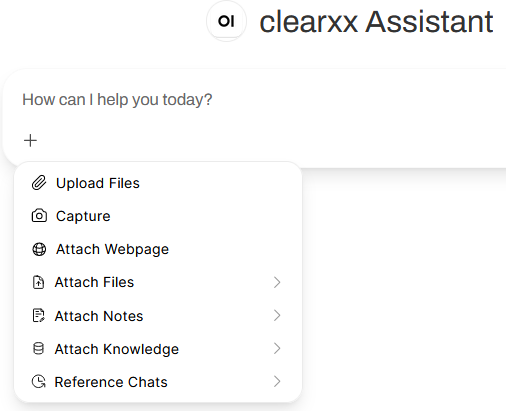
Use only these options to include data:
- Attach Files (this allows you to select individual or multiple files you have added to a Knowledge)
- Attach Notes (these are notes you created under Notes)
- Attach Knowledge (this brings you to the structure of your Knowledges, you can either add individual files, directories or complete Knowledges)
- Reference Chats
The data from Knowledge is vectorized and provides more lean processing.
A Knowledge, files from a Knowledge, or a folder can also be attached to a chat using the # symbol.
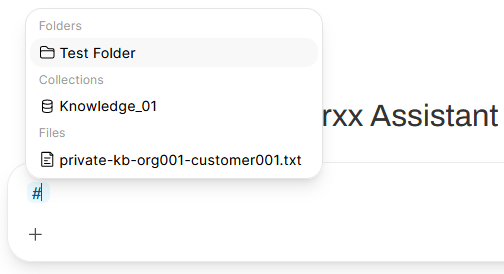
In this example, the user has created 3 things that can be attached to the chat:
- A Folder
- A Knowledge
- A file that belongs to the Knowledge
Language use in Chats
You can chat in any language with the clearxx Assistant. It will normally recognize your language and then respond accordingly. Should that not happen, ask the clearxx Assistant to respond in whatever language you prefer.
Conversations
For best responses, keep the length of your conversation with the clearxx Assistant short. Going back and forth 10-20 times is enough. Going on longer means the context is lost. To keep context in a conversation, look at the sections Notes, Folder and Workspace. Also remember that you can add Memory under Personalization. It is best-practice to organize and prepare what data you want to add short or long term or ad-hoc to your interaction with the clearxx Assistant.
Up-to-dateness
The LLM behind the clearxx Assistant only has information up to a certain point in time, usually a few months behind the actual date. If you need more up to date information, use an internet-based search engine for that and then bring information to the clearxx Assistant via Workspace or Notes.
File Storage
Remember that this tool is NOT your personal cloud file storage. You can upload up to 100MB of files of any kind in total in Workspace and Notes and then selectively use that data in your chats. When you approach about 80% of that you will get a notification. Running over will lead to suspension of the account. Remember to do proper housekeeping and delete the files you no longer need. Safely store them on your computer or other file storages as permitted per your organization.
Data Protection Out-of-the-Box
The clearxx platform allows you for the first time to process all available data in your work:
- Your personal data
- Your organisation's data
- Your customer's data
You can now create new and innovative solutions not possible before.