Best Practices
This section explains some best practices that help you manage your work in the clearxx Assistant.
Using the clearxx Assistant
The clearxx Assistant is NOT a search engine.
If you need very recent information or in general want to search the internet, use an internet based search engine.
You can bring search results into the clearxx Assistant in various ways. The best option is to use Workspace and create Knowledges.
The clearxx Assistant is your companion to discuss complex topics, come up with plans and in general to help you manage your work.
Remember that it can and should be used in tandem with the clearxx Agent & Build Workspace. If you have participated in the clearxx Workshop you have learned how to use both tools together for best results.
clearxx Assistant vs clearxx Agent & Build Workspace
The clearxx Assistant is your very intelligent companion. Use it to:
- Discuss
- Plan
- Organize
- Strategize
The clearxx Assistant uses an LLM model that is especially good for these kinds of tasks.
The clearxx Agent & Build Workspace and especially Cline is a very different tool. Use it to build things like:
- Lists
- Plans
- Documents of any kind (Excel, htmls, Word Documents etc.)
- Codes and scripts that you can use to automate your work, especially repetitive tasks
The Agent & Build Workspace uses an LLM model that is designed for running software code to build things.
Using Files in the clearxx Assistant
You can add files in Workspace/Knowledges or Folders. By default, the clearxx Assistant does not read these files completely. For each question it only gets the pieces of a file that best match your question. To have the Assistant read a whole file, open the file (in the Folder settings or in the chat) and flip the switch at the top right of the preview, so that it reads Using Entire Document. Leave this switch alone for a Knowledge, which is meant for searching large collections.
Do NOT include very large files directly in a chat. Use subsets or sample data only. Remember you are using the clearxx Assistant to plan things, not to do the heavy work. The clearxx Assistant can, for example, compare two files - which you have cleaned up and reduced to a minimum of data. Based on such a quick comparison or analysis, you can then plan how to apply that in Cline to a larger set of data.
Think carefully about when you actually want to use large amounts of data in the chat. Use the chat to plan. A file that is read completely is sent with every message, so large files make the Assistant slower and use many more tokens. Use the switch for small files only.
To plan, the clearxx Assistant doesn't necessarily need to work through large amounts of data for you. Cline can do that better.
You also need to think about whether Cline should work with a sample or with the full data.
TIP – first ask the clearxx Assistant how you should handle the data, what and how much the Assistant needs, and what Cline needs.
For more information about how the Assistant uses your files, go to articles.clearxx.ai .
Cleaning up Data before usage
Before adding data to Workspace/Knowledges or Folders, make sure you clean it up first:
- Take out visuals - pictures, graphic, anything that is not needed for analysis
- Take out data not relevant to the analysis (if it's about payroll, you don't need 5000 rows of logistics pick-lists in the Excel)
- Convert files to csv or markdown (md) format as much as possible to save space
Look for tools on the internet that can extract data from PowerPoint and PDFs and put them into a CSV file. You only need the text and data. This will greatly reduce the file size. And make it much easier for the AI to process those files.
Data Storage and Deleting Data
The clearxx Assistant is NOT a personal cloud storage service.
You can store up to 100 MB of files/data in the clearxx Assistant.
The maximum size per file for uploading a single file is 20MB.
A maximum of 10 files can be uploaded at once.
So clean up your files before uploading them.
This is monitored automatically, and if you reach 80% of your storage capacity, you will be notified.
If you exceed the limit, your account — or all accounts belonging to your company — will be temporarily locked. Your administrator will be notified. As soon as you are below the limit again, the lock will be lifted.
Make sure to regularly clean up and delete your data:
- Files
- Notes
- Chats
Also regularly clean up the "containers" for your data, such as:
- Knowledge
- Directories
- Folders
EXTREMELY IMPORTANT
- To ensure that all files are actually deleted correctly, they must be deleted centrally.
Open your user settings.
Go to Data Controls.
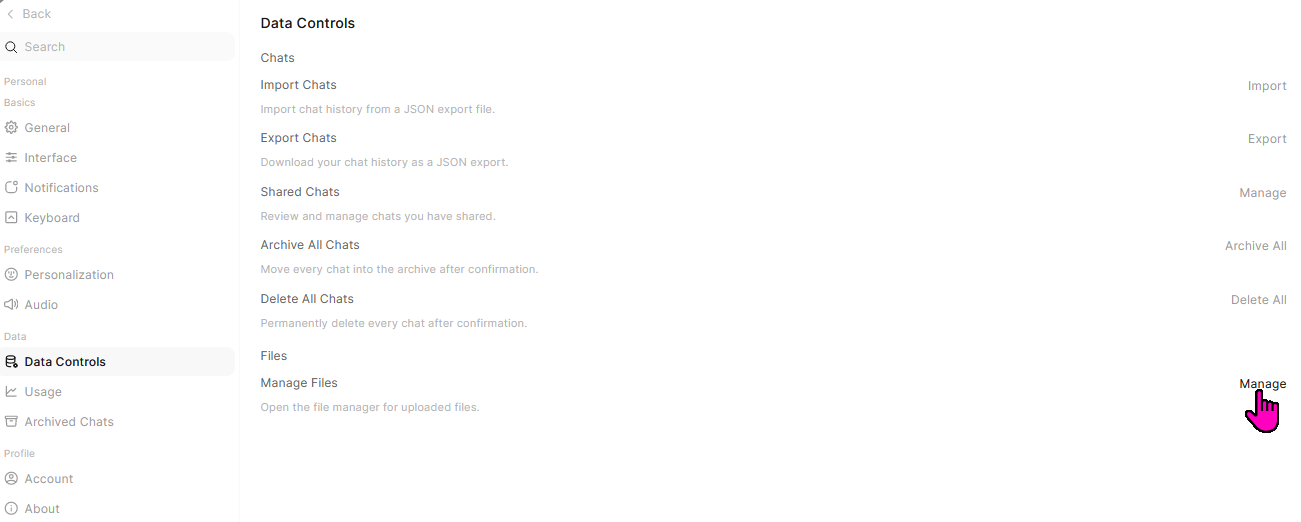
Under Manage Files, click Manage.
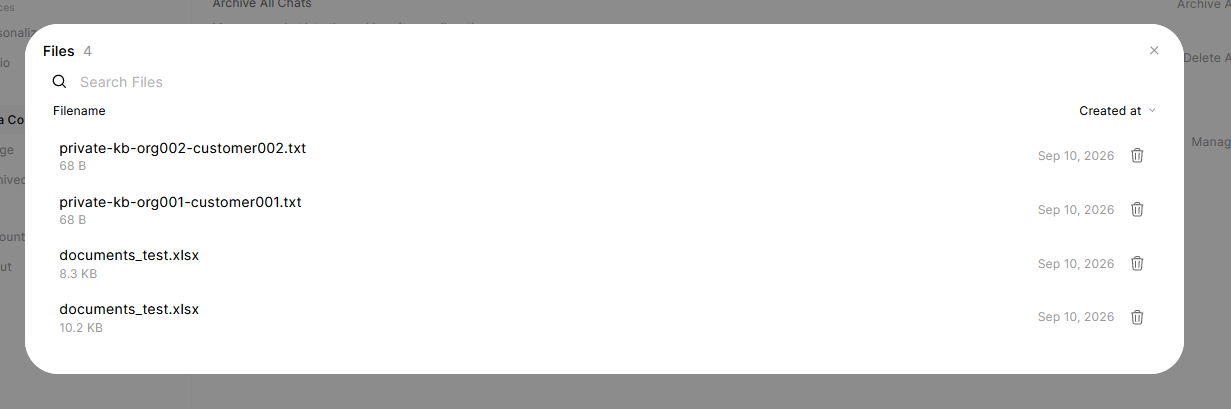
Here, all files stored in the clearxx Assistant are displayed.
Delete all files you no longer need.
Note:
It's possible that the same file appears multiple times (if it has been used multiple times). Delete the duplicates and keep only the one file you still need.
Cleaning up here also reduces the number of files you see when you want to add a file to a chat.